Introduction
Recently, I was building an agent in Copilot Studio (Classic) that needed to accept files from chat and save them later in the flow. The common approach is to pass a single file straight to a tool call using System.Activity.Attachments - but you can only pass one file, not the array.
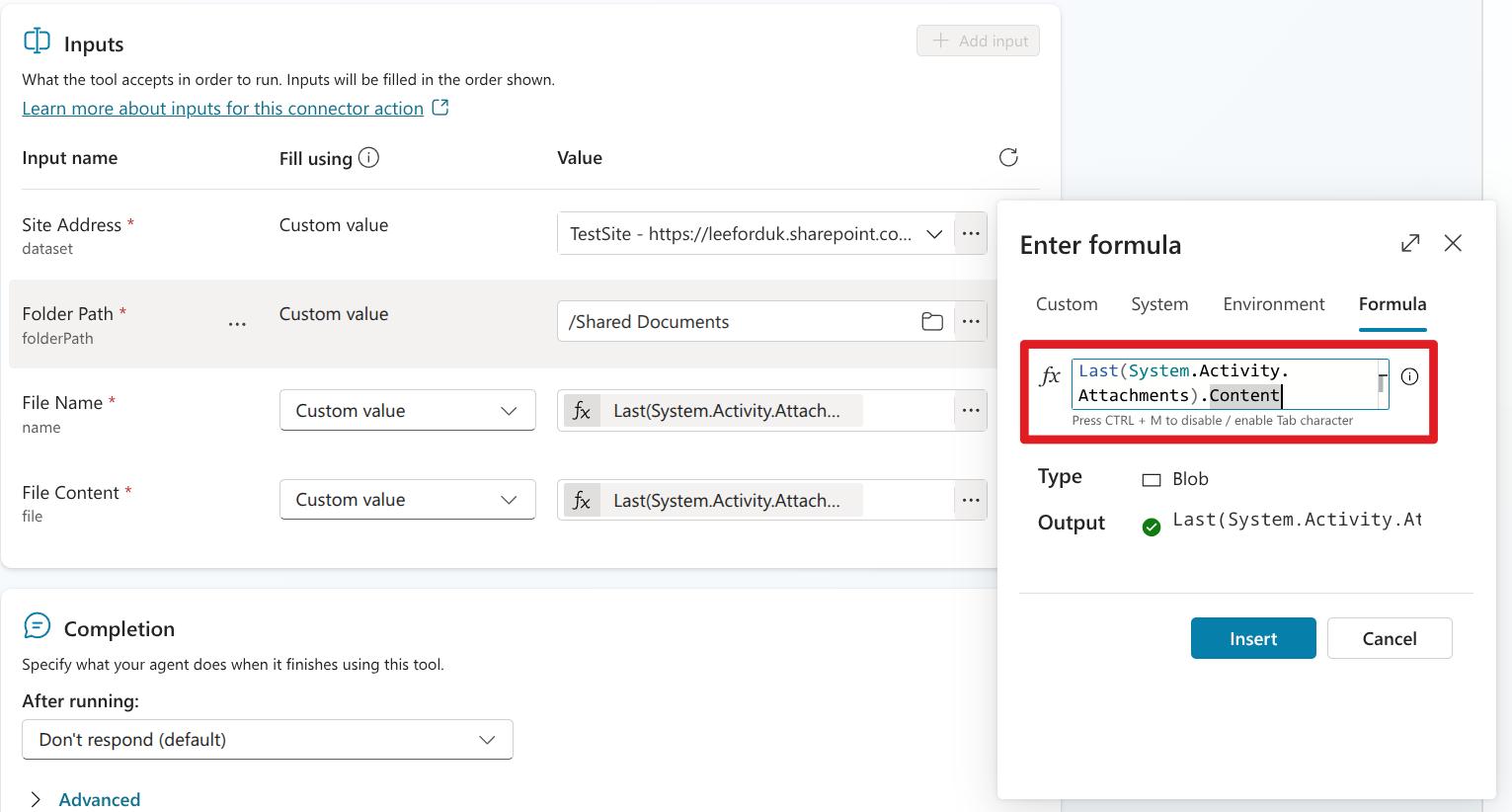
That works for simple cases, but it introduces two problems:
- It does not handle multiple files. If you have more than one file in a single message, you can only save the first or last one. The agent will also only call the tool once
System.Activity.Attachmentsonly exists on the current activity, so attachments can be lost if you perform other actions first
The main reason for this issue is the agent is using the Bot Framework’s
System.Activityobject, which is designed to last for a single turn. Once the turn is processed, the attachments are no longer available.
In this post, I will show a simple pattern that avoids both issues. The goal is to capture uploaded files immediately, store them in a global variable, and save them later when your process is ready.
Step 1: Create a topic for each incoming message
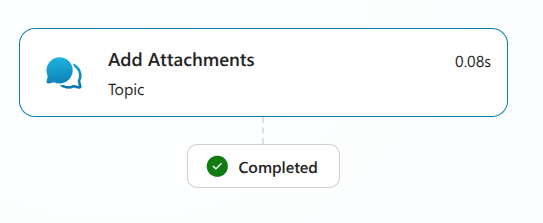
First, create a topic Add Attachments that runs when the user message contains attachments.
In this example, the topic checks whether attachments are present and stores them in a global variable for later use.
kind: AdaptiveDialog
modelDescription: Capture message attachments into a global queue.
beginDialog:
  kind: OnRecognizedIntent
  id: main
  condition: =!IsEmpty(System.Activity.Attachments)
  intent: {}
  actions:
    - kind: SetVariable
      id: setVariable_BrT3By
      variable: Global.Attachments
      value: |-
        =System.Activity.Attachments

    - kind: SendActivity
      id: sendActivity_OJC34y
      activity: |-
        {"Added " & CountRows(System.Activity.Attachments) & " attachment(s). " & CountRows(Global.Attachments) & " total attachment(s) now queued."}

inputType: {}
outputType: {}
You should now see a confirmation in chat every time files are uploaded.
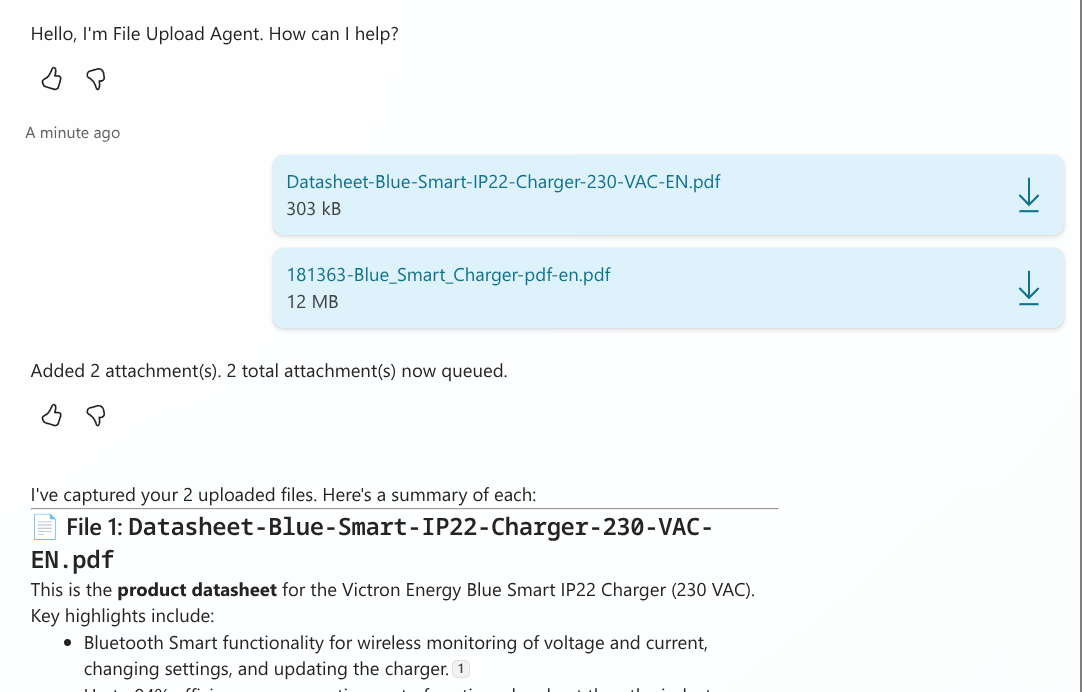
Step 2: Keep attachments queued until needed
At this point, do not upload files yet.
Run the rest of your process first, for example:
- Extract and validate key values.
- Ask the user to confirm details.
- Create or update a target record.
The key point is that attachments stay available in Global.Attachments while this happens.
Step 3: Create a topic for saving attachments
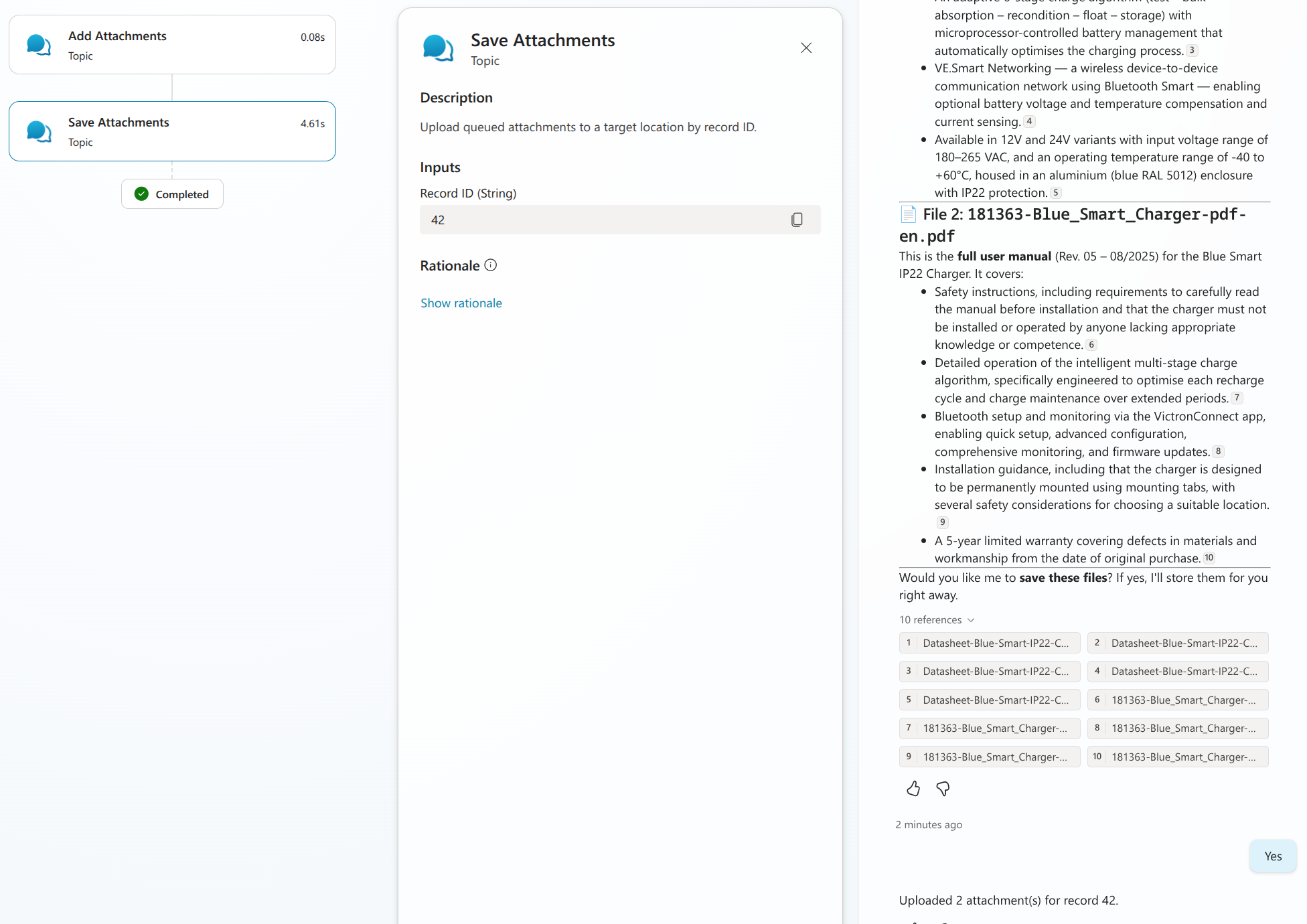
Next, create a second topic Save Attachments to save the queued attachments.
In my example, I used a RecordId input so files are saved into an ID-based folder structure that matches a record in a SharePoint list.
That input is not required for this pattern. If you do not need ID-based grouping, you can save files without RecordId.
In this example flow:
- If RecordId is missing, end early with a clear message.
- If attachments are missing, end early with a clear message.
kind: AdaptiveDialog
modelDescription: Upload queued attachments to a target location by record ID.
beginDialog:
  kind: OnRecognizedIntent
  id: main
  intent: {}
  actions:
    - kind: ConditionGroup
      id: ensureRecordId
      conditions:
        - id: recordIdPresent
          condition: =!IsBlank(Topic.RecordId)
          actions:
            - kind: ConditionGroup
              id: ensureAttachments
              conditions:
                - id: hasAttachments
                  condition: =CountRows(Global.Attachments) > 0
                  actions:
                    - kind: Foreach
                      id: foreach_UrrGeW
                      items: =Global.Attachments
                      value: init:Topic.Attachment
                      index: init:Topic.LoopIndex1
                      actions:
                        - kind: InvokeConnectorAction
                          id: invokeConnectorAction_RdAjBY
                          input:
                            binding:
                              dataset: https://<tenant>.sharepoint.com/sites/<site>
                              file: =Topic.Attachment.Content
                              folderPath: =Concatenate("/Shared Documents/", Topic.RecordId, "/")
                              name: =Topic.Attachment.Name

                          output:
                            kind: SingleVariableOutputBinding
                            variable: Topic.CreateFile

                          connectionReference: <sharepoint-connection-reference>
                          connectionProperties:
                            name: <sharepoint-connection-reference>
                            mode: Maker

                          operationId: CreateFile

                    - kind: SendActivity
                      id: uploadSummary
                      activity: '{"Uploaded " & Text(CountRows(Global.Attachments)) & " attachment(s) for record " & Topic.RecordId & "."}'

              elseActions:
                - kind: SendActivity
                  id: noAttachments
                  activity: No saved attachments were found to upload.

      elseActions:
        - kind: SendActivity
          id: missingId
          activity: Record ID is required before upload.

        - kind: EndDialog
          id: endMissingId

inputType:
  properties:
    RecordId:
      displayName: Record ID
      description: ID used to group and upload attachments
      type: String

outputType: {}
You should now have a reusable save topic that can upload all queued files.
Note: Replace the SharePoint action with your own or populate with your own values
Step 4: Ensure your instructions reference the topics
Finally, ensure your instructions reference the two topics in the correct order:
- Run Add Attachments on each incoming message.
- Run Save Attachments only after the record ID is available.
Basic example instructions
1. On every message, run Add Attachments first.
2. Provide a summary of the file to the user. Ask user if they want the file saved. If yes, generate a RecordId as a whole number from 1 to 100 and run Save Attachments.
Recap
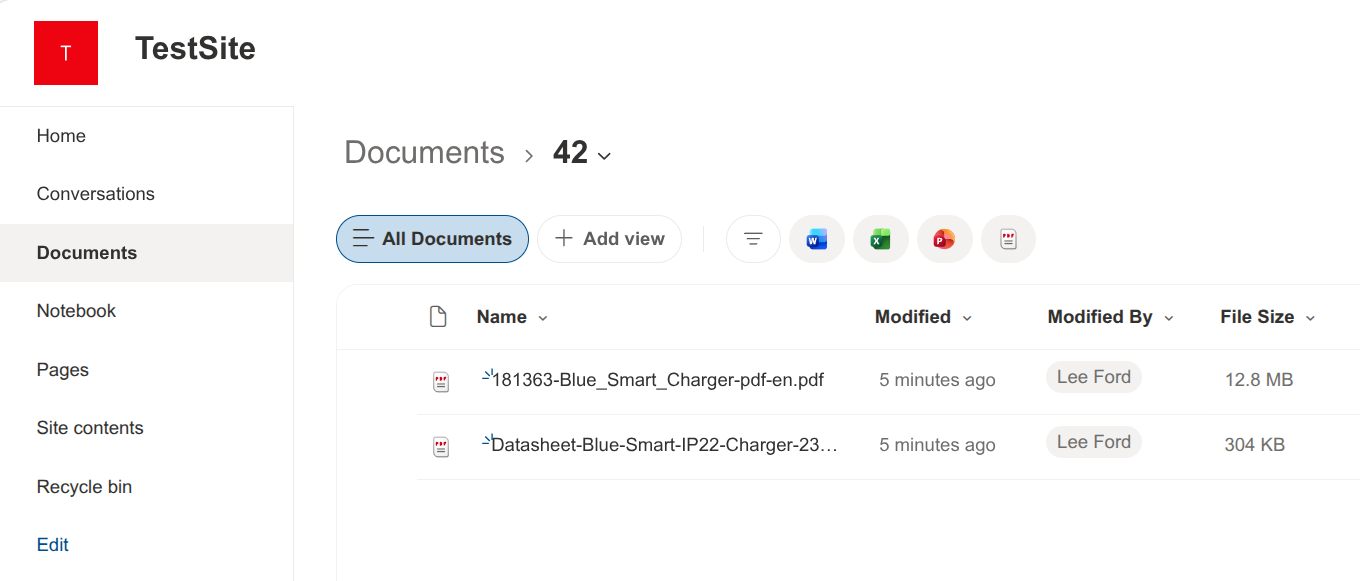
We have covered a simple pattern to capture and save attachments in Copilot Studio. This gets around the limitations of System.Activity.Attachments and allows you to queue multiple files for later processing. The full conversation is here, with the resulting files appearing in their destination.
Before you ask - as of July 2026 - there is no way to reliably do this same pattern in the new Copilot Studio experience. The new experience does not support global/system variables, topics or anyway to reliably parse a file and pass to a tool.